

Autoassign places students who skip flex sign-ups
It matches them to open flex activities using your rosters and the students teachers have asked to see, prioritizing those marked at risk, while respecting capacity and restrictions. Existing sign-ups stay untouched.
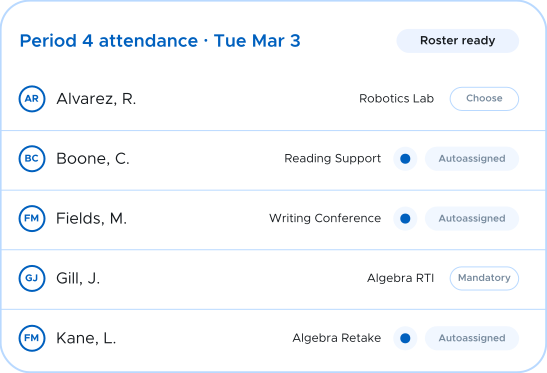
One overnight run
No spreadsheets, no afterschool roster wrangling, no morning scramble.
It only touches the students who need it
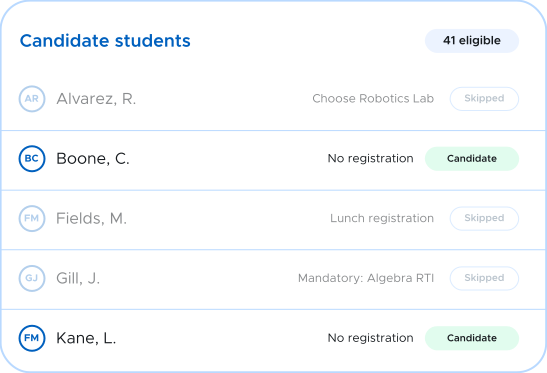
Autoassign starts with the active students tied to that Flex period and date, then removes everyone who already has somewhere to be. A student who chose their own activity keeps it. So do mandatory assignments, registrations made by staff, and lunch. Autoassign works the remainder.
- Student selections and mandatory assignments are never overwritten
- Lunch registrations, period exclusions, and canceled graduation years filtered out first
- Controlled Access Period rosters honored, whether allowed or forbidden
Teacher priorities carry real weight
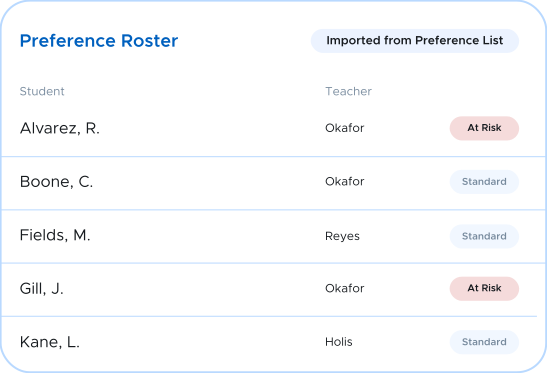
The Preference Roster connects students to the teachers who need them, built from your Preference List file or maintained inside the product. Autoassign weighs those relationships when it picks an activity. A student on an activity's roster pulls hardest toward that activity, and a student flagged At Risk is strongly favored toward their teacher's activity. Weighting rather than hard assignment means a full room never leaves a student stranded.
- Activity rosters and additional-student lists weigh heaviest of all
- An At Risk flag sharply increases the pull toward that teacher's activity
- Preference Roster maintained by admins, staff, and teachers alike
Capacity and separation rules hold
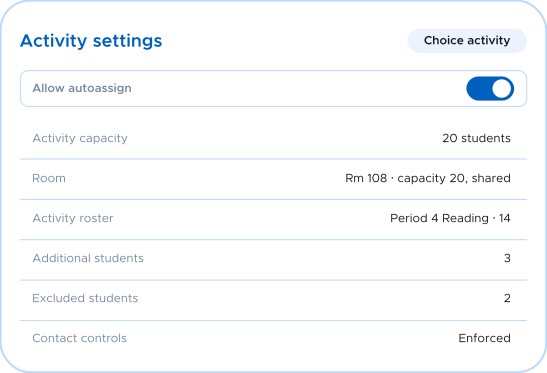
Autoassign will not put a student where they don't belong. It checks the activity's capacity and the aggregate capacity of the room, drops activities from consideration as their seats fill mid-run, applies student-to-teacher restrictions, and enforces contact controls against students already registered in that room.
- Activity capacity and room capacity both enforced, including rooms shared across activities
- Student-to-teacher restrictions and activity-level exclusions applied per student
- Contact controls keep separated students out of the same room
Run it overnight, or run it yourself
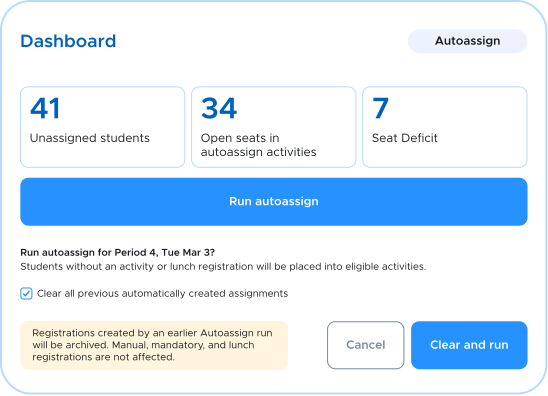
Autoassign runs automatically in the midnight hour, covering flex periods whose registration cutoff has already passed, so students get one last chance to move out of catchall before the day starts. Admins can also run it on demand from the Dashboard for today or any future date, and clear the previous automatic assignments first if something changed.
- Automatic overnight run, plus on-demand runs from the admin Dashboard
- Manual runs cover today and future dates, up until the period starts
- A rerun clears only Autoassign-created registrations, never manual ones
From afterschool roster wrangling to rosters that build themselves
Automatic placement for every student who hasn't chosen a flex activity

Choices preserved
Students who registered themselves keep their activity. Mandatory, staff, and lunch registrations stay untouched.

Preference weighted
Activity rosters, Preference Roster relationships, and At Risk flags all pull students toward the right teacher.

Capacity aware
Activity and room capacity enforced as the run proceeds, with full activities dropping out of consideration.

Restriction safe
Teacher restrictions, activity exclusions, and contact controls applied on every placement.

Catchall backstop
Students with no eligible seat stay unassigned and appear in catchall by room, using the room and default teachers you configured.

Admin controlled
Flex period setup and manual runs are admin only. Teachers keep control of Autoassign activity by activity.
How it works
From an empty flex period to a full roster in three steps

Step 1: Configure
Choose Autoassign with catchall by room for the Flex period, select your Preference List file, and name your catchall room and default catchall teachers.

Step 2: Open the seats
Teachers build choice activities with ALLOW AUTOASSIGN on, set capacity and rosters, and flag the students they need as At Risk.

Step 3: Wake up assigned
The run places unregistered students into eligible activities. Anyone left over appears in catchall by room. Rerun from the Dashboard any time before the period starts.
One platform for the whole flex period
Scheduling that already knows your rosters
A separate scheduling tool means another roster sync, another vendor review, and another list of exceptions to maintain by hand.
Autoassign reads the activities, rosters, capacities, restrictions, and contact controls your school already keeps in Securly Flex, so it applies the rules you set once instead of asking you to rebuild them somewhere else.
"This program has been a magic bullet. Every student is accounted for 100%. A night and day difference from what we've experienced in the past." — Dixie Rae Garrison, 2018 UASSP Principal of the Year
What the overnight run does
- Selects eligible periods. Autoassign Flex periods with unassigned students and open eligible activities.
- Locks the Flex period. Activities cannot be edited, moved, or removed while assignment is in progress.
- Builds the candidate list. Active students for that period and date, minus anyone already registered.
- Scores eligible activities. Rosters, Preference Roster ties, and At Risk flags set the weights.
- Claims seats. Activities drop out as activity and room capacity fill.
- Writes registrations, releases the lock. Placements are saved in bulk and the period unlocks.
Autoassign FAQs
See tomorrow's rosters build themselves
Watch Autoassign place unregistered students into eligible flex period activities, inside the rules your school already runs on.